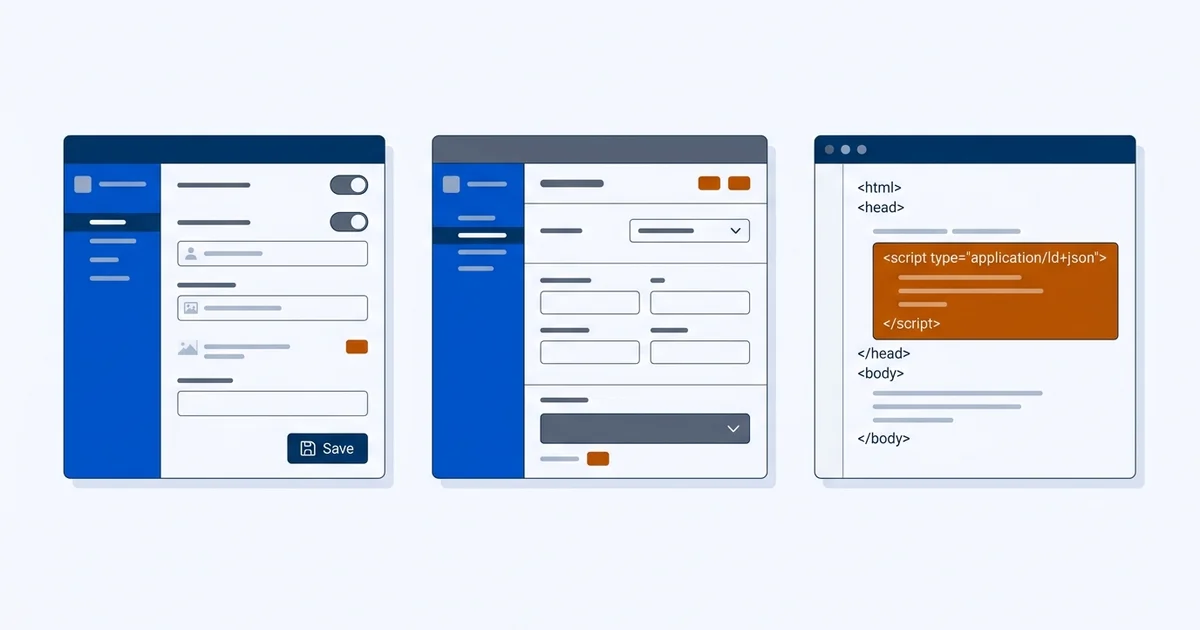
Getting the block onto the page
You have the JSON-LD from Lesson 4: schema and structured data for local AI SEO, or from the guide on which LocalBusiness fields matter. Now it needs to be live, on the right pages, and valid.
The block goes inside a script tag:
<script type="application/ld+json">
{
  "@context": "https://schema.org",
  "@type": "Plumber",
  "@id": "https://example.com/#organization",
  "name": "Example Plumbing"
}
</script>
Head or body both work, despite the confident advice you will read elsewhere. What matters is that it renders in the HTML a fetcher receives and that it describes the page it sits on.
On WordPress
Three routes, in order of preference.
An SEO plugin that already handles it. Most major SEO plugins generate LocalBusiness markup from settings you fill in. This is usually the cleanest option because it keeps one source of truth. Fill in the business fields properly and check what it produces.
A header-injection snippet. If your plugin’s output is too limited, disable its schema output and add your own block through a code-snippets plugin or your theme’s header hook.
Direct theme edit. Only in a child theme, or an update will remove it.
The common WordPress failure is duplication: the theme emits one block, the SEO plugin emits another, and they
disagree about hours or phone number. Check the rendered source for more than one application/ld+json block
describing the same business.
On a hosted site builder
Look for a custom code, head injection or embed setting. Most builders have one, sometimes limited to higher plans.
Two cautions. First, some builders inject their own generic markup, so check what already exists before adding more. Second, some strip script tags from content areas, in which case the head-injection setting is the only route that survives publishing.
If your builder offers no way to add custom code at all, that is a real constraint on AI findability, and it is one of the factors in the website builder versus WordPress comparison.
On a hand-coded or static site
Add the block to your shared layout template so it appears on every page that should carry it. For static site generators, keep the values in a config file rather than duplicating them across templates, so one edit updates everything.
Validating
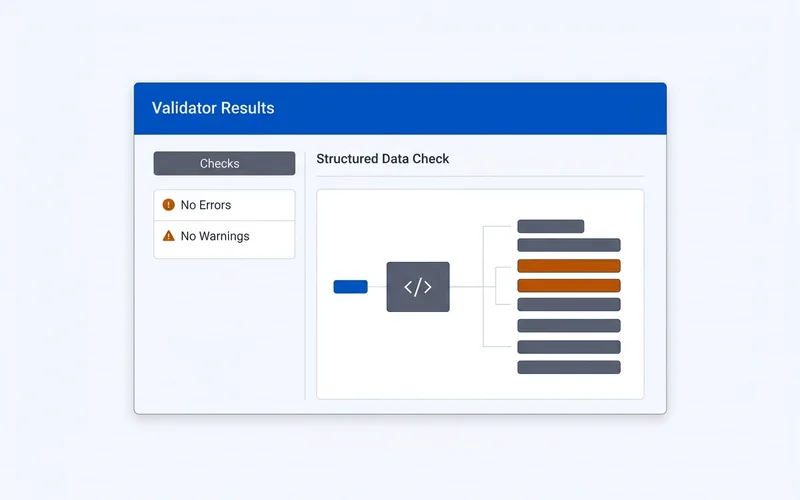
Two checks, both free.
Google Rich Results Test. Paste the live URL, not a code snippet. Testing the live URL is the only way to catch the class of problem where your block exists in the editor but never renders.
The Schema.org validator. It checks the vocabulary itself rather than one search product’s requirements, so it catches structural problems the Google tool ignores.
Fix errors first, then look at warnings, most of which are optional-field suggestions you can ignore.
The mistakes that silently break a block
Invalid JSON. A trailing comma or a smart quote from a word processor breaks the whole block. It fails silently: the page looks fine and the markup does nothing.
Wrong or missing @type. A typo in the type name means nothing recognises the entity.
Markup that contradicts the page. Hours in the block that differ from hours on the page. You have created a contradiction inside a single document, which is the worst possible version of the problem.
Block present only in the editor preview. Common with builders and caching layers. Always view the rendered source of the live page.
Placeholder values left in. "telephone": "+1 555 0100" shipped to production happens more often than you would
think.
Blocked by a cache or optimisation plugin. Aggressive HTML minification can mangle JSON-LD. Re-validate after enabling any new optimisation.
Confirm it is live everywhere it should be
View source on the homepage, the contact page and one service page, and search for application/ld+json. You are
checking three things: the block is present, there is only one describing the business, and the values match your
profile.
Then re-run both validators any time you change a fact. Schema is a one-time job that becomes a liability the moment it goes stale.
A pre-publication checklist
Run this before you consider the job done.
- Validate the live URL, not a pasted snippet, in both Google Rich Results Test and the Schema.org validator.
- View the rendered page source and search for
application/ld+json. Confirm the block is there. - Count the blocks. More than one business description on a page means a plugin conflict.
- Compare every value against your business profile. Name, phone, address or service areas, hours and URL must match exactly, as the NAP consistency guide describes.
- Check the pages you expect it on. Homepage and contact page at minimum.
- Re-check after your next site update. Caching, minification and plugin updates all break markup quietly.
Put the last item in your quarterly maintenance list. Structured data does not degrade gracefully: it either parses or it does nothing, and nothing looks exactly like success from the front end.
What to do when the platform fights you
Three common constraints and the honest workaround for each.
No custom head code. Check whether the platform offers a footer or body injection, since JSON-LD works there too. If neither exists, you have found a genuine platform limitation, which is one of the factors in the website builder versus WordPress comparison.
A plugin that emits markup you cannot fully control. Configure it as far as it goes rather than adding a competing block. A partially complete block that matches your profile beats two blocks that disagree.
An agency-managed site you cannot edit. Send them the exact JSON with your canonical values and ask for a screenshot of the rendered source afterwards. Then validate the live URL yourself.